Add Conditions
You can define a condition in a filter using Conditional Editor. The Conditional Editor allows you to add a single condition, multiple conditions, a condition in a condition, and combination of all. The Conditional Editor provides you logical and relational operators using which you can build a combination of conditions.
Logical Operator
The logical operator is used to construct a logic with multiple conditions and a condition in a condition. The result of the high-level parent logical operator makes the decision defined in Decision Label. The result of the high-level parent operator is based on the results of each child element (conditions, a group of conditions, or combinations) added to it.
The result of every logical operator is a Boolean value (true or false).
There are two logical operators provided in the Conditional Editor:
- AND: results true if the results of all conditions are true. Otherwise, results false.
- OR: results true if the result of any one condition is true. Results false when the results of all conditions are false.
Conditions
The Conditions option adds a row to define a condition using the fields and relational operators, and the result of the condition is always a Boolean value (true or false). When you click Conditions, a new row gets added to the logical operator. The rows added using the Conditions option act as operands to logical operators. The row added has the following fields:
- Select Field
- Select Operator
- Select Value

Note: Click the delete icon to remove the condition row from the logical operator.
Select Field
When you click this box, the Select a field dialog box is displayed to select the field you want to use in the condition. This dialog box provides the following options to make the required field selection easier:
Field Group
Let's you group and display the fields pertain to any one of the following categories:
- Transaction Attribute: Displays the primary attribute fields associated with a transaction such as date of transaction, phone number, email ID, and so on.
- Risk Score: Displays fields that have risk score assigned. For example, transaction risk score and device risk score.
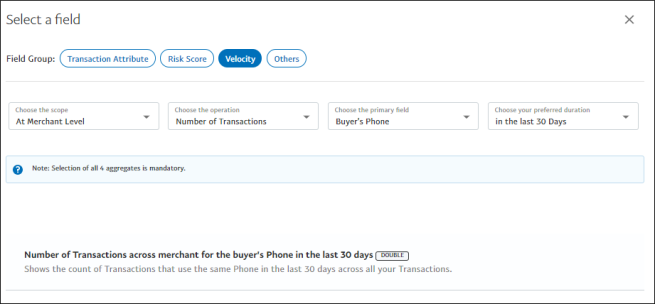
- Velocity: Lets you select an aggregation field in the condition. As there are various aggregations available, the following filters help you easily select the required field:
- Choose the scope: Select the appropriate level (Braintree or Merchant).
- Choose the operation: Select the operation type you want to use to find the aggregation. For example, if you want to use the number of distinct email addresses per phone number, you must select Number of Email IDs.
- Choose the primary field: Select the transaction attribute on which you want the grouping of the operation needs to be performed. For example, if you want to perform the grouping based on phone number, select buyer’s phone.
- Choose your preferred duration: Select a duration to be considered for the operation.
The following figure illustrates the usage of the filters to select the variable – Number of Transactions across merchant for the buyer's Phone in the last 30 days.
- Others: Displays fields that do not fall under any of the above categories.
Search
The Search box helps you find the field you want to use in the condition. The moment you start typing any text in the Search box, the fields list gets filtered and displays only the fields that match the characters you typed.
Select Operator
Contains a list of relational operators. Select the required operator. If you select is NULL or is not NULL from the list, Value box disappears. To learn more, see Relational Operators.
Select Value
Allows you to enter text or numbers, which is compared to the value of the field selected in Select Field box based on the selected relational operator.
Relational Operators
Note: The data match of 'String' and 'Text' variables to fields are not case-sensitive for Blocklists/Allowlists operators and Filters. The data is stored and viewed in the case entered by you. This is applicable for all the Blocklists/Allowlists operators, such as is equal, is not equal, so on, and also for Filters data match and filter simulations.
- is equal: Returns true if the value of the field selected in Box 1 is an exact match with the value defined in Box 3. Otherwise, returns false.
- is not equal: The opposite of the is equal operator. Returns true if the value of the field selected in Box 1 is not an exact match with the value defined in Box 3. Otherwise, returns false.
- is in: Returns true if the value of the field selected in Box 1 matches with the values defined in Box 3. Otherwise, returns false.
- is not in: The opposite of the is in operator. Returns true if the value of the field selected in Box 1 does not match with the values defined in Box 3. Otherwise, returns false.
- is NULL: Returns true if the value of the field selected in Box 1 is null. Otherwise, returns false.
- is not NULL: The opposite of the is not null operator. Returns true if the value of the field selected in Box 1 is not null. Otherwise, returns false.
- is less than: Returns true if the value of the field selected in Box 1 is less than the value defined in Box 3. Otherwise, returns false.
- is less than or equal to: Returns true if the value of the field selected in Box 1 is less than or equal to the value defined in Box 3. Otherwise, returns false.
- is greater than: Returns true if the value of the field selected in Box 1 is greater than the value defined in Box 3. Otherwise, returns false.
- is greater than or equal to: Returns true if the value of the field selected in Box 1 is greater than or equal to the value defined in Box 3. Otherwise, returns false.